
Known issues
Code generation fails because a template is missing
Laravel Idea code generations templates are stored in Settings | Editor | File and Code Templates: the Code tab holds one template per generation (for example Laravel Ideal Controller or Laravel Ideal Json Resource), and the Includes tab holds parts they share (Laravel Ideal Header, Laravel Ideal Class Name). If any of these templates is missing, the generation stops with an error and may leave an empty file behind.
For example, without the Laravel Ideal Header include, Create Json Resource fails like this:
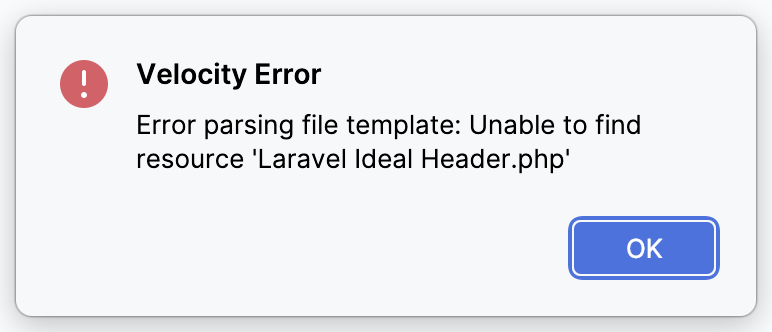
The error names the missing template: Error parsing file template. Unable to find resource 'Laravel Ideal Header.php' for an include, or Template <name> not found. for the template of the generation itself.
Templates usually go missing when the IDE or project settings were created with a plugin version that didn't have those templates yet, and were then synced to other installations, for example with Settings Sync. Templates removed in the File and Code Templates settings cause the same error.
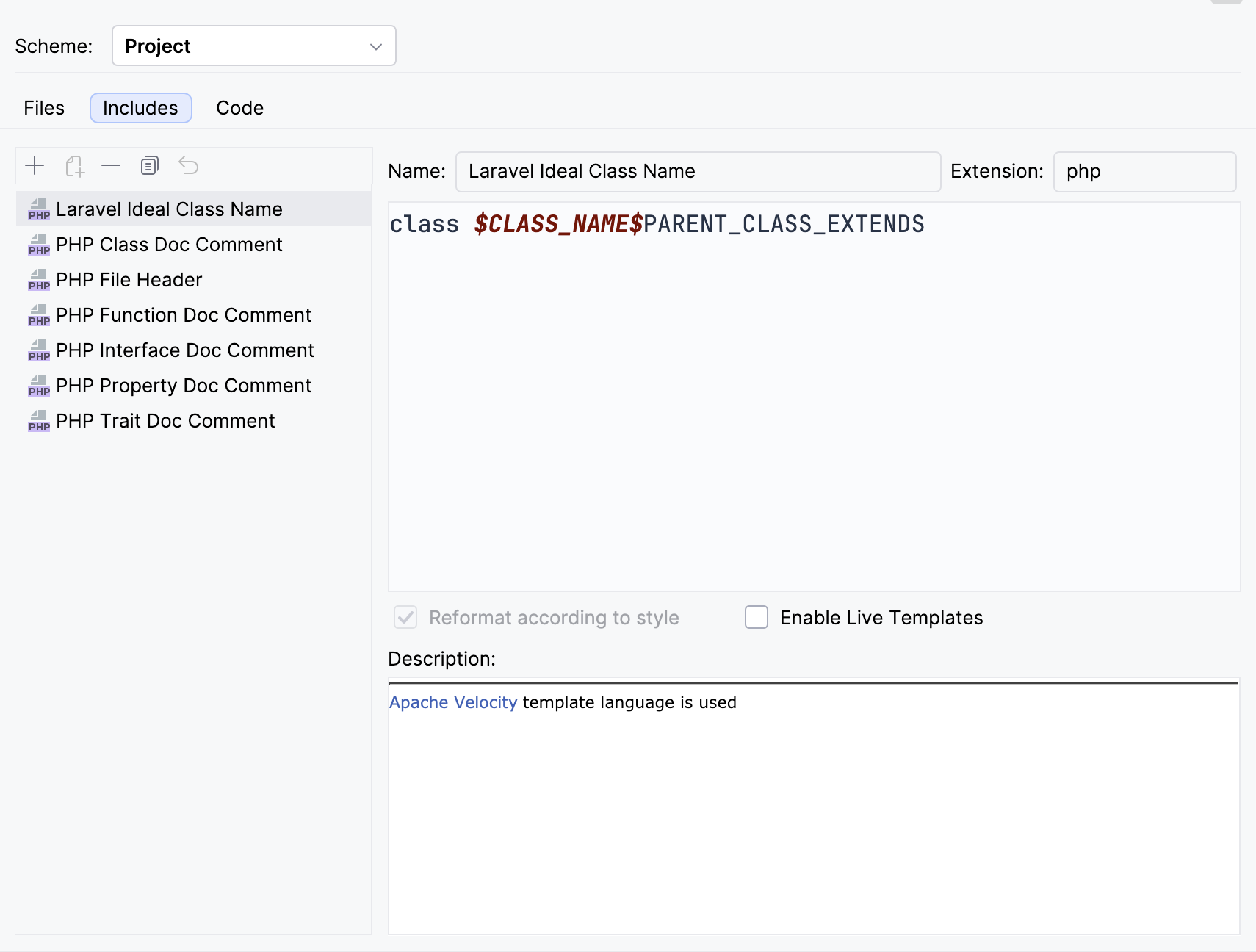
Missing templates can't be found in Settings | Editor | File and Code Templates: here the Includes tab of the Project scheme lists Laravel Ideal Class Name, but not Laravel Ideal Header:
Fix
The plugin ships all these templates, so the fix is to remove the project or IDE settings that hide or replace them. PhpStorm then uses the plugin's templates again.
First, check which scheme your project uses in Settings | Editor | File and Code Templates.
Project scheme. The project's template settings live in its .idea folder:
- Close the project (File | Close Project). PhpStorm saves the template settings on close, so delete files only after closing.
- Delete
.idea/file.template.settings.xml. It lists the templates that were removed from the project scheme. - In
.idea/fileTemplates/, delete the copies of Laravel Ideal templates that you didn't write yourself (incode/,includes/, or the folder itself). Keep your own templates, such as those used by custom generations. - Open the project again. The Laravel Ideal templates are back on the Code and Includes tabs.
Default scheme. The same files are in the IDE configuration directory, for example ~/Library/Application Support/JetBrains/PhpStorm2026.2 on macOS, or C:\Users\<YourUsername>\AppData\Roaming\JetBrains\PhpStorm2026.2 on Windows: options/file.template.settings.xml and the fileTemplates/ folder. Quit PhpStorm before changing them. In options/file.template.settings.xml, delete the <template name="Laravel Ideal ..." enabled="false" /> lines rather than the whole file, because it also stores settings of other templates.
Then delete the empty file the failed generation created, and run the generation again.